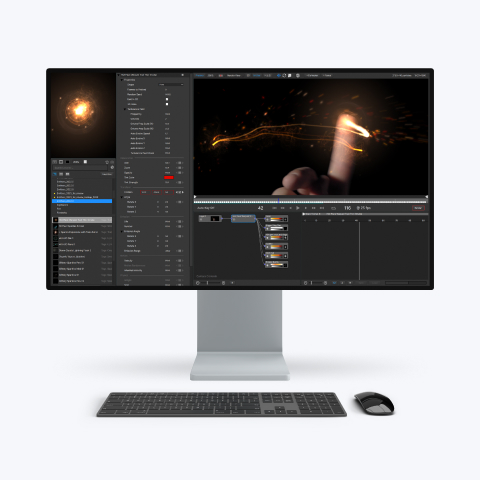
Making repeating patterns in Illusion    28 Nov 00


(Note: an Illusion project file containing the emitter used here can be found at the end of the tutorial, and CAN be loaded by the demo version of Illusion.)


Here's an example of a cool "repeating tile" effect that I came up with recently.

358 KB DivX AVI


This is actually a pretty simple effect to create -- here's how I did it:

First, you need an appropriate emitter.   Almost any emitter will do, but the emitter choice will determine what the overall effect looks like (I'm sure that some WILDLY different end results can be obtained just by using a different emitter to start with).   In my example I used something that doesn't spread out too much (velocity very low) and had a fairly long life (I wanted the particles to "trail").   (The emitters in the "Chasers" folder of my June 2000 IEL "alan_00_06" are a good place to start.   I'd suggest decreasing the "life" of these though.)


I'll assume that you have an emitter to start with.   I'll also assume that it's a point emitter right now.   We'll be changing it to either a line emitter or an area emitter soon, but it's easier to work with as a point emitter at this time.   Add it to the stage (of course) and put it in the exact center of the stage by selecting the emitter name in the hierarchy window so the graph window shows the "position" graph, then R-click in the graph window and select "Reset".

Now R-click on the emitter on the stage and select "Record Position".   This function is used to "draw" the emitter position path during playback.   Record the emitter position for several (at least 100) frames now, but don't move too quickly, or very far.   Keep the motion contained to a relatively small area.

At this point you should have a single point emitter that moves in a pattern that you recorded.


The next step is to make the whole stage rotate.   This is accomplished using the Layer Angle property.   Select it in the Hierarchy Window and create a data key at some frame and and angle that gives you the rotation rate that you think looks good.   In this example I'll set the Layer Angle to 180 at frame 240 -- a relatively slow rate of rotation.   Here's what the graph looks like for Layer Angle:


That creates a nice rotation that you probably can't see yet (since the emitter is still a point emitter).   The final step is to duplicate the emitter so it will create an "array" of particles -- the repeating pattern that we want.   There are 3 ways to do this, so we'll look at all 3 and you can choose which method you want to use (I'd recommend reading all 3 before you actually do anything to your project).


Hardest (don't pick this method)

The most straightforward way to create the array is also the most difficult: just make many copies of the point emitter and place them in an array manually.   This requires you to COPY the emitter, then PASTE it and MOVE it several times.   (In my example I used a 7 x 7 array on a 320 x 240 stage.)   When you position the emitters, you'll need to make sure the array extends outside of the stage area, since the layer will be rotating.   If you don't then there may be parts of the stage (corners) that won't have anything in them when the angle reaches 45 degrees.   Also, when moving the emitters, remember to hold down CTRL so the entire emitter position path moves.

I don't know about you, but I don't like to have 49 emitters on the stage at once.   We'll look at the second method now.


Less Hard (good choice)

Instead of dealing with 49 emitters on the stage (in my 7 x 7 example), wouldn't you rather deal with only 7?   I would.   We'll do this by converting the point emitter into a line emitter before copying it.   R-click on the emitter and select "Add Point", then drag the endpoints of the lineso they go completely across the width of the stage (and extend a little further).

at frame 1

Now open the properties dialog for the emitter and check the "emit at points" option, then set the number of emission points to 7 (or whatever number you need).

at frame 50


Now you'll just need to COPY and PASTE (then MOVE) the emitter a few times (6 in my example) to create the array.   Don't forget to hold down CTRL while moving the emitters, and remember to make the emitters extend beyond the edges of the stage so the corners are covered when the layer rotates.

Now we'll look at the final (best) method.


Easy (best choice, but only available in v2.0)

Even though we're only dealing with 7 emitters instead of 49, it's still 6 more than I like to use.   Wouldn't you like to be able to do this effect with only a single emitter?   If you're running v2.0 of Illusion (click here for more reasons why you should be using v2.0) you can just change the point emitter into an area emitter by R-clicking on the emitter on the stage and selecting "Make Area".   Set the width and height so the stage is covered (plus a little more to cover the corners when the layer rotates).   Then open the emitter properties dialog and check "emit at points" and set the number of points to "7 x 7" or whatever you need.   That's it!


A single emitter that does everything we want?   Great!   This solution is really nice if you need to change anything about the emitter.   In the other solutions once you make all of the copies of the emitter, any changes will require you to COPY, PASTE, and MOVE all over again.   Using an area emitter, you can easily change anything about the effect you want, even use a different emitter (using the "Replace" function).

You're still not using v2.0 yet?   You really need to click here.


Final Thoughts

You can see that this technique isn't too difficult (if you choose the right method), and can produce some really amazing results!   One thing to keep in mind (and you've probably already noticed it) is that creating an array of emitters multiplies the number of particles by the number of copies.   If your single emitter creates a lot of particles, the array will REALLY create a lot of particles.   Unless you like to have things get very slow, try to minimize the number of particles in the original point emitter.

Remember, if you want it to be slow, you might as well just do it in 3D. ;-)


The project file (of the method using line emitters):    (19 KB)
(This project file CAN be loaded by the demo version of Illusion.)


Alan Lorence    28 Nov 00