Chances are, that if you
are reading this, you’re new to particleIllusion. Don’t worry – you are
about to be amazed by how simple it is to get incredible results in a very short
amount of time. In this tutorial we will be importing a background image and
adding some emitters. This tutorial will be continued in the next tutorial on
multi-layered compositions and images with transparencies.
To do this tutorial,
you’ll need to download
the Tutorial Files
,
and unzip them to your hard drive.
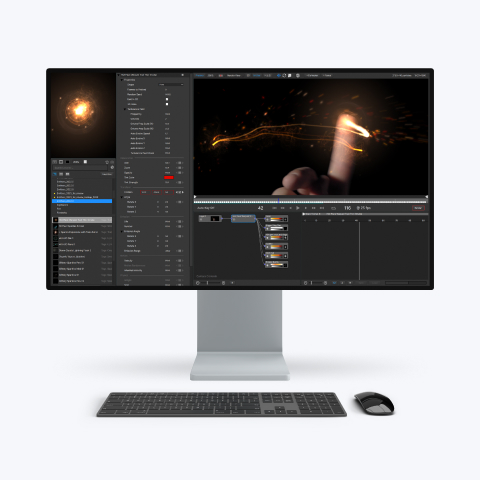
Below is a picture of the
particleIllusion interface – which we will be referring back to throughout the
tutorial:

1. Main Toolbar
2. Nudge Toolbar
3. Playback Toolbar
4. Layer Window
5. Hierarchy Window
6. Stage
7. Graph Window
8. Preview Window
9. Library Window
Lets get started.
First thing we want to do, is import the background footage:
1. In the
layers window (4), double-click on the big
gray box next to the words “Layer 0.”
2. A File Open
dialog will appear, allowing you to pick what you want to use as your background
footage. You have a choice of a lot of image formats, including image sequences
such as AVI’s. Navigate to the folder you unzipped the tutorial files to and
highlight “Starry_BG.jpg.” Then just click “open.”
3. At this
point, particleIllusion may ask you if you want to change the stage size to
match the BG image. Select “yes.”

4. Depending on your
default settings, the stage may now be too big for your setup, but that is easy
to fix. Just grab hold of the window frames and move them over, until you can
see your stage. It works the same way as moving frames around on web pages or in
other programs. As you work in the program, you can always move them back to see
the things you need.

At this point, you should
now have something that looks like this:

Illusion always starts up
with the last emitter library that was active. If this is your first time using
it, the “Default” library will be active in the library window (9).
What we are going to do is open the library containing the emitters for this
tutorial.
1. In the Library
Window, Context click (Right-Click) anywhere and you will get a library menu
- select “Load Library.”
Insert Picture here of Library context Click menu with load library highlighted.
2.
You will get a Library Open Dialog similar to the BG open dialog in the
previous section. Navigate to the folder with the tutorial files, and pick the
file called “Fireworks_Tut.iel.”
A new library with 2 emitters will open in the library window. You can see what
the emitters look like by highlighting them, and then watching the preview
window (8),
right above the library.
Alright,
now lets get down to business. This is the fun part. Let’s add some emitters
to the stage:
1. In
the Graph Window (7),
make sure the Frame Indicator (the gray button with the red number on it and the vertical
red line) is on frame #1. You can change the frame number by grabbing hold of
the frame indicator with your mouse and sliding it. Alternately, you can change
the frame number by using the Frame Box
in the Playback Toolbar (3).
2.
In the library window, highlight the emitter called “Short
Burst Green.” You should see a green fireworks explosion playing in
the preview window.
To
add an emitter to the stage, just click where you want it to go. You can put
your emitter anywhere you want in the stage window, even off of the actual stage
(such as in a case where you’d animate it moving an emitter on and off across
the screen). Since we will be building off of this tutorial for the next one,
follow the image below when taking the next steps:
3.
Using the image
below as a reference, at frame #1, add the emitter “Short Burst Green.”
4.
At frame number #18
, add the emitter “Short Burst Purple.”
5.
At frame number #26
, add the emitter “Short Burst Purple.”

At
this point you are probably wondering where your particles are. Why can’t you
see them? To save system resources, particleIllusion hides the particles by
default. To see your particles, go to the Main toolbar (?)
and press the “Show Particles” button. Now when you scroll through
your timeline you will see the particles.


That’s
it! We’re done with the first tutorial. Go out and get yourself some coffee
and donuts. You deserve it. Get me one with sprinkles.
Our
next tutorial will pick up from here. We’ll
learn the little bit about changing particle colors, multi-layered compositions,
and using background images with transparencies.
TECHNICAL NOTE: particleIllusion
must have an active library to open. If you delete these tutorial files
when we are done, the next time you open pIllusion, a warning will come up
saying that you need to locate a library so that pIllsuion can open. Simply
Navigate to the “particleIllusion” folder in your program files (or the
“Illusion folder if you are using the particleIllusion 2.0.5 Upgrade, or any
previous version), and choose the default emitter library (or any libraries you
might be storing there). A great way to keep track of your libraries is to make
a folder in the Illusion directory called “Emitter Libraries,” and then just
store all new libraries there. That way you won’t have to navigate all over
your computer looking for various libraries. You can rename your libraries to
whatever you want, but you must keep the suffix “iel” for pIllusion to
recognize them.