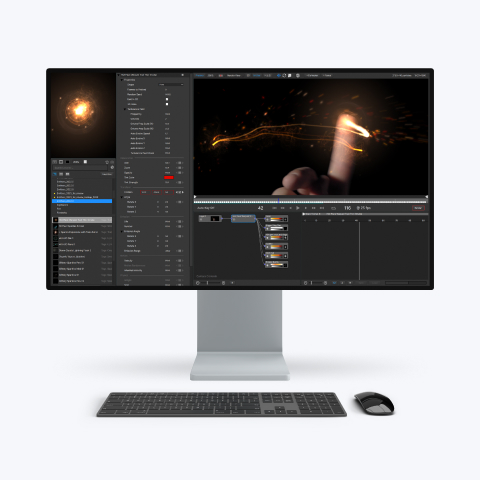
While particleIllusion is not integrated with
After Effects, the 2 programs can function well together, if you know what to
do. There are several ways to both output and use pillusion footage in After
Effects. This tutorial will cover several of the methods, as well as importing
position data from After Effects. This tutorial assumes that you have a basic
understanding of both pIllusion and After Effects, and that you can manuver
around both programs’ user interface. It would greatly help if you’ve done
the first 2 basic particleIllusion tutorials, but it isn’t necessary if you
already know your way around pIllusion, and are just trying to figure out how to
use it with After Effects.
Some of the footage we are going to generate will take up a lot of space, so make sure you have about 30-45 MB free. This is only temporary. Once we are done with the tutorial, you can erase the files, but until we render our final movie in AE, you will need that space. You’ll also need to download the Tutorial Files.
For this tutorial, you’ll need to
become familiar with Alpha Channels and Masks (or Mattes). Normally an image
contains 3 channels – a Red, a Green, and a Blue, defining how much of each
color is seen in an image. In some image formats (Such as Tiff or Targa) it is
possible to have a 4th channel called the Alpha Channel – A
Black and white image that determines what parts of the image are transparent.
Parts that are black are completely transparent, and parts that are white are
completely opaque. For the rest of it, how dark or light the gray part of the
channel is, determines how transparent it is.

However, in After Effects, an image (or
sequence) that has no Alpha Channel, can still be made transparent by adding a
black and white layer (image or sequence) above it, and telling AE to use it as
a Matte (which does the same thing as an alpha). You
can also use a layer containing colors, and AE will decide how transparent
things are based on brightness and alpha, but that is outside the scope of this
tutorial.

First thing we need to is open both
After Effects and pIllusion. Once you’ve done that:
1.
In AE, open the tutorial file “Rocket.aep.”
2.
In pIllusion, open the tutorial emitter library “AE_Tut.iel.”
3.
Set your project to 640x480 – to do this: in the standard menu at the top of
particleIllusion, select “Veiw”ŕ
“Project Settings.” This will open a “Project Settings” dialog.

4.
In the “Stage Size” area, enter 640x480, or choose it from the presets
pull-down.
5.
Click OK
6. In the Library Window, open the Illusion Emitter Library (IEL) called "AE_Tut.iel" that was included with the tutorial files.
1.
In AE, Select the layer called
“Rocket” and hit the letter “P” on your keyboard. This will open up the
rocket’s position keyframes.
2.
Click on the word “Position” – this will highlight/select all of the
layer’s position keyframes.
3.
Go to the Edit Menu and click “Copy”
1.
In pIllusion, put the emitter called “Smoke_Mask”” anywhere on the stage.
2. In pIllusion, go to the Hierarchy window, and Right+click on the emitter called “Smoke_Mask”- choose “Import Position Data” from the pop-up menu.

3.
Choose “After Effects 5.0 (from Clipboard)” and click OK.

If you play your animation,
you’ll see that your emitter moves across the stage, and by the time it
reaches frame #100, there are no more particles visible. Next we are going to
render out this animation as an image sequence, for use in After Effects.
At this point, it would be
a good idea to create a folder for your footage, somewhere on your hard drive.
This will make it easy to locate
the files and import them into After Effects. Let’s make a folder called
“Footage” and within that, make folders called: “Smoke_Mask,”
“Smoke,” “Flame,” “Asteroids_Front,” and “Asteroids_Back.”
1.
In pIllusion, hit the Record button. A “Save As” dialog will pop-up.

2.
Locate the “Smoke_Mask” folder you created (in the “Footage” folder).
3.
Name your output file “Smoke_Mask”
4.
For “Save as type,” choose JPG.
5.
Click OK – This will bring you to the “Output Options” dialog.

6.
Set your Start Frame to “1,” and your End Frame to “100” (since no more
particles are visible after this point).
7.
Set “Compressed Image Quality” all the way up to “High”
8.
Set your Zoom to 100% (640x480) – Note: you can only do this if your
stage is completely visible. If it isn’t, cancel out of this, and set up your
stage correctly (as seen in tutorial 1), then come back and do the above steps.
9.
Click OK. – You will then get a message that will tell you that your file name
will be “Smoke_Maskxxxx.jpg” -
which means that your files will be numbered in frame order - so frame #34 would
be called “Smoke_Mask0034.jpg”
10.
Click OK – This will start your render.
OK,
so what did we just do here?
While Alpha Channels can be very helpful, they are not always perfect, especially when the edge of the alpha is
blurry (or soft). Since smoke has soft edges on the particles, outputting smoke with an
alpha channel would create some blocky looking smoke. What we just did was
create a matte for the smoke we are going to make a little later in this
tutorial. The smoke shape will come from this sequence, but the smoke color will
come from a different layer that we will place below this one, in After Effects.
We still need to render out
some more particles for our final animation. Next we are going to create the
rocket flames. Here is what you need to do:
1. In pIllusion, create a new project - In the Main Menu click on the icon that looks like a piece of paper with sparkles (New Project button).

2.
Set up your project as we did in Section I.
3.
Again, follow the steps to getting the position data from AE and bringing it
into pIllusion.
4.
In pIllusion, put the emitter called “Flame” anywhere on the stage.
5. Scroll through your animation, and see that the flames go off the stage a lot
earlier (at or about frame #70).
6.
Out put your image sequence to the folder called “Flame,” and call your
image sequence “Flame” as well. Use the same settings as before, but this
time, output frame #1-70 – no need to render blank frames.
What
did we just do?
Clearly this is not going to be a matte, right? So why did we output an
image without an alpha channel? How’s it going to look in After Effects? Well,
bright, semi-transparent particles also do not work well with an alpha channel,
so we are going to bring this footage into our After Effects and use the Layer
Transfer Modes to allow only the light colors to show. That means that the black
background will be invisible, and the bright flame will be semi-transparent
showing up on anything darker than it. If you have no idea what I’m are
talking about here – don’t worry. You’ll get it once we move into AE.
Now, for the rest of our
particles, I’ve done the work for you. Since none of these require position
data, and you already know how to add emitters to the stage, there’s no point
in dragging this on. All you need to do is output the image sequences.
1.
In pIllusion, open the tutorial project “Smoke.ipf” – This one may
be a little resource intensive, so you may want to shut off your “Show
particles” button.
2.
If your system has any real trouble with this, you can try and lower the amount
of particles (Hierarchy Window – “Number”), and scaling up the particles
(Hierarchy Window – “Size”). But don’t so this unless you have to.

2.
Out put your image sequence to the folder called “Smoke,” and call your
image sequence “Smoke” as well. Again, use the same settings as you
did previously, and output frames #1-100.
What
did we just do? This is going
to be the smoke layer that goes under the smoke mask we made. It will provide
the color and texture for our smoke in AE.
The last two
sequences we need will be of asteroids floating around. These particles are
solid, that is they have no fuzziness at their edges, and they are not at all
transparent. That being the case, we would get the best results by rendering the
sequence in an image format that uses an Alpha Channel.
1.
In pIllusion, open the tutorial file called “Asteroids_Front.ipf.”
2.
Hit the Record button. A “Save As” dialog will pop-up.
3.
Locate the “Asteroids_Front” folder you created (in the “Footage”
folder).
4.
Name your output file “Asteroids_Front”
5.
For “Save as type,” choose “TIF.”
6.
Click OK – This will bring you to the “TIF Options” dialogue.

7.
Select the options: RGB and “Use Packbits Compression”
8.
Click OK – This will bring you to the “Output Options” dialog.

9.
Set your Start Frame to “1,” and your End Frame to “105.”
10.
Select/Check “Save Alpha.” Some new options will appear.
11.
Select/Check “Remove Black BG from RGB Channel”
12.
Set your Zoom to 100% (640x480) – Note: you can only do this if your
stage is completely visible. If it isn’t, cancel out of this, and set up your
stage correctly (as seen in tutorial 1), then come back and do the above steps.
13.
Click OK. This will again open the filename confirmation dialog.
14.
Click OK – This will start your render.
Lets do the exact same
thing with the project called “Asteroids_Back.ipf.” When you are
outputting your sequence, you will use the exact same settings, but the folder
and filename will be “Asteroids_Back.”
What
did we do here? We output a
sequence of images that have an alpha channel. When we import it, After Effects
will interpret it as being solid for the asteroids, and transparent for the
background.
You
may be seeing a gray line going across the very, top, bottom, right, or left of
the footage you output. If you find that this has happened, there is a simple
way to fix it, but you’ll need to re-output your footage again. Here is what
you do:
1.
Go through the steps of outputting your footage as we’ve discussed.
2. When
you get to Output Options dialog, click the “Adjust Frame” button.
3.
Once you do that, a new “Adjustment for Frames in Output” dialog will
appear. Follow these instructions:

If the gray line appears at either the top or bottom of
your output, then adjust the settings in the upper half of the dialog and leave
the settings in the lower half alone. If
the line appears on the left or right edges of your output, then ignore the
settings in the upper half of the dialog and use the ones in the lower half.
Change the
settings based on the instructions next to the adjustment box.
When
changing the settings, change them by 1, then test by saving output.
If the gray line still appears, come back to this dialog and change the
value by 1 more then test again. (Changing
the values by more than one may just move the line to the other side of the
frame.)
For example,
if you see a gray line at the top of your saved output, decrease the top setting
by 1 (from 0 to –1). Save an
image or AVI. If the line still
appears and is on the top, then decrease the value by 1 again (from –1 to
–2). The line should now be gone.
If the line moved from the top to the bottom of the frame, then check the
option that is below the adjustment value.
This may require you to change the adjustment value again, but don’t do
it until you test your output.
Well, that’s it for
exporting footage from particleIllusion. Let’s move on to bringing that
footage into After Effects in Part 2.